Wednesday, 29 January 2020

Google Analytics API Integration to PHP website

Google Analytics is an integral part of  all websites right now. The main benefit of integrating it with our website is knowing our audiences better. We can know which location they are from, which device they are using, which pages they are visiting.etc...  In normal process, we will get an analytics dashboard from google itself to browse through the analytics datas and graphs. But sometimes  we will be having a requirement, where we have to show those data into our websites dashboards. In this scenario we have to integrate the API with our website.


STEPS FOR CREATING API ACCOUNT ( From Google Developer Docs)

To get started using Analytics Reporting API v4, you need to first use the setup tool, which guides you through creating a project in the Google API Console, enabling the API, and creating credentials.

  1. Open the Service accounts page. If prompted, select a project.
  2. Click add Create Service Account, enter a name and description for the service account. You can use the default service account ID, or choose a different, unique one. When done click Create.
  3. The Service account permissions (optional) section that follows is not required. Click Continue.
  4. On the Grant users access to this service account screen, scroll down to the Create key section. Click add Create key.
  5. In the side panel that appears, select the format for your key: JSON is recommended.
  6. Click Create. Your new public/private key pair is generated and downloaded to your machine; it serves as the only copy of this key. For information on how to store it securely, see Managing service account keys.
  7. Click Close on the Private key saved to your computer dialog, then click Done to return to the table of your service accounts.

Add service account to the Google Analytics account


The newly created service account will have an email address that looks similar to:

quickstart@PROJECT-ID.iam.gserviceaccount.com

Use this email address to add a user to the Google analytics view you want to access via the API. For this tutorial only Read & Analyze permissions are needed.
2. Install the client library
You can obtain the Google APIs Client Library for PHP using Composer:
composer require google/apiclient:^2.0
Refer:- https://developers.google.com/analytics/devguides/reporting/core/v4/quickstart/service-php
3.  Now all our libraries has been downloaded. But for fetching data, we should know how to call classes and functions. For attributes and responses you can refer to this library:-

4.  In this post, I want to make the developers job very easily. I have developed a package where you can just call functions and you will get the data you need. Please download my package from Github.


My Further Explanation will be based on this.

In my package there is a  File called  AnalyticsFunc.php, I have included all the functions in this file based on my research of Google analytics API. 
One thing You have to do is replace two values in those files:-

1) Find $KEY_FILE_LOCATION = __DIR__ . '/credentials.json'; Line in the initializeAnalytics() function and change the json file name to the file name you downloaded from google developer console. You have to include that file in the root folder.

2)In Every Function, there is a line called  $VIEW_ID = "YourID";. here you have
to provide your view id of that particular project from google analytics
dashboard.

You just need to call the functions like below:-

<?php

//Including Files and Libraries

require_once __DIR__ . '/vendor/autoload.php';
include("AnalyticsFunc.php");

//Initiliazing Analytics Object
$analytics = initializeAnalytics();

//Calling User Reports Sessions and page views
$userreport = getUserReport($analytics);
$records=fetchResults($userreport);
?>

Above is a sample code for calling user reports sessions. You will get result in an array format, which you can use for generating graphs, charts and tables.

For calling all functions until initializing Analytics objects will be common. The functions part you can call any functions as per your Requirement.  I will list all the functions down here.

$sessionreport = getsessionReport($analytics); // Get all Session Data
$traffic = gettrafficsources($analytics); //Get  all Traffic Sources
$platform = getplatformreport($analytics); //Get all Platforms Data
$geonetwork = getgeonetworkreport($analytics); // Get all Location Reports
$social = getsocialreport($analytics); //Report on Social activities
$pagetracking = getpagetrackingreport($analytics); // Report on Page Tracking
$internalsearch = getinternalsearchReport1($analytics); // Get Internal Search reports
$speed = getspeedReport($analytics);// Get Page Speed Report
$socialinter = getsocialinteractionReport($analytics); // Get Social Interaction reports




Sunday, 26 January 2020

Integrating Google Authenticator (2 Factor Authentication) into your PHP Website


What is Two Factor Authentication?

Two Factor Authentication, also known as 2FA, two step verification or TFA (as an acronym), is an extra layer of security that is known as “multi factor authentication” that requires not only a password and username but also something that only, and only, that user has on them, i.e. a piece of information only they should know or have immediately to hand — such as a physical token.

How Google Authenticator works?

Google Authenticator is a free app for your smart phone that generates a new code every 30 seconds. It works like this:
When enabling 2FA, the application you’re securing generates a QR code that user’s scan with their phone camera to add the profile to their Google Authenticator app.
Your user’s smart phone then generates a new code every 30 seconds to use for the second part of authentication to the application.

Implementing Google Authenticator on your website using PHP

For implementing we have to do two steps.


1) User have to scan a barcode and authenticate the two factor authentication. So the secret we will save in a field of our database table. Practically in our live project. suppose you have a table called users in your database. You may be saving all user details like name,email,phone,password all in that table. You have to create 2 fields in that. one field is to check whether user want 2FA or not. so You can set a variable called "2fa_enable" and set as INT or Boolean. so values will be 1 for enabling, 0 for disabled. The second field will be "auth_secret". This field you can create as VARCHAR. It will save all aphanumerals, which will be used to save the secret generated during the authentication.


2)Next step is veryfing the code after the login process. In this step we will check the string enetered using the google authenticator app to the string created using the secret saved in our database. If both matches we will redirect to accessing pages otherwise login will be failed.


Implementing in the Project

1) We are using Authenticator Library for this.  Make a php file named Authenticator.php ad copy paste the below code.

<?php


class Authenticator
{
    protected $length = 6;
    public function generateRandomSecret($secretLength = 16)
    {
        $secret = '';
        $validChars = array(
            'A', 'B', 'C', 'D', 'E', 'F', 'G', 'H', 
            'I', 'J', 'K', 'L', 'M', 'N', 'O', 'P', 
            'Q', 'R', 'S', 'T', 'U', 'V', 'W', 'X', 
            'Y', 'Z', '2', '3', '4', '5', '6', '7', 
            '=',
        );

        // Valid secret lengths are 80 to 640 bits
        if ($secretLength < 16 || $secretLength > 128) {
            throw new Exception('Bad secret length');
        }
        $random = false;
        if (function_exists('random_bytes')) {
            $random = random_bytes($secretLength);
        } elseif (function_exists('mcrypt_create_iv')) {
            $random = mcrypt_create_iv($secretLength, MCRYPT_DEV_URANDOM);
        } elseif (function_exists('openssl_random_pseudo_bytes')) {
            $random = openssl_random_pseudo_bytes($secretLength, $cryptoStrong);
            if (!$cryptoStrong) {
                $random = false;
            }
        }
        if ($random !== false) {
            for ($i = 0; $i < $secretLength; ++$i) {
                $secret .= $validChars[ord($random[$i]) & 31];
            }
        } else {
            throw new Exception('Cannot create secure random secret due to source unavailbility');
        }

        return $secret;
    }


    public function getCode($secret, $timeSlice = null)
    {
        if ($timeSlice === null) {
            $timeSlice = floor(time() / 30);
        }

        $secretkey = $this->debase32($secret);

        $time = chr(0).chr(0).chr(0).chr(0).pack('N*', $timeSlice);
        $hm = hash_hmac('SHA1', $time, $secretkey, true);
        $offset = ord(substr($hm, -1)) & 0x0F;
        $hashpart = substr($hm, $offset, 4);

        $value = unpack('N', $hashpart);
        $value = $value[1];
        $value = $value & 0x7FFFFFFF;

        $modulo = pow(10, $this->length);

        return str_pad($value % $modulo, $this->length, '0', STR_PAD_LEFT);
    }


    public function getQR($name, $secret, $title = null, $params = array())
    {
        $width = !empty($params['width']) && (int) $params['width'] > 0 ? (int) $params['width'] : 200;
        $height = !empty($params['height']) && (int) $params['height'] > 0 ? (int) $params['height'] : 200;
        $level = !empty($params['level']) && array_search($params['level'], array('L', 'M', 'Q', 'H')) !== false ? $params['level'] : 'M';

        $urlencoded = urlencode('otpauth://totp/'.$name.'?secret='.$secret.'');
        if (isset($title)) {
            $urlencoded .= urlencode('&issuer='.urlencode($title));
        }

        return 'https://chart.googleapis.com/chart?chs='.$width.'x'.$height.'&chld='.$level.'|0&cht=qr&chl='.$urlencoded.'';
    }

    public function verifyCode($secret, $code, $discrepancy = 1, $currentTimeSlice = null)
    {


        if ($currentTimeSlice === null) {
            $currentTimeSlice = floor(time() / 30);
        }

        if (strlen($code) != 6) {
            return false;
        }


        for ($i = -$discrepancy; $i <= $discrepancy; ++$i) {
           $calculatedCode = $this->getCode($secret, $currentTimeSlice + $i);
       
            if ($this->timingSafeEquals($calculatedCode, $code)) {
                return true;
            }
        }

        return false;
    }


    public function setCodeLength($length)
    {
        $this->length  = $length;

        return $this;
    }


    protected function debase32($secret)
    {
        if (empty($secret)) {
            return '';
        }

        $base32chars =  array(
            'A', 'B', 'C', 'D', 'E', 'F', 'G', 'H', 
            'I', 'J', 'K', 'L', 'M', 'N', 'O', 'P', 
            'Q', 'R', 'S', 'T', 'U', 'V', 'W', 'X', 
            'Y', 'Z', '2', '3', '4', '5', '6', '7', 
            '=',
        );
        $base32charsFlipped = array_flip($base32chars);

        $paddingCharCount = substr_count($secret, $base32chars[32]);
        $allowedValues = array(6, 4, 3, 1, 0);
        if (!in_array($paddingCharCount, $allowedValues)) {
            return false;
        }
        for ($i = 0; $i < 4; ++$i) {
            if ($paddingCharCount == $allowedValues[$i] &&
                substr($secret, -($allowedValues[$i])) != str_repeat($base32chars[32], $allowedValues[$i])) {
                return false;
            }
        }
        $secret = str_replace('=', '', $secret);
        $secret = str_split($secret);
        $binaryString = '';
        for ($i = 0; $i < count($secret); $i = $i + 8) {
            $x = '';
            if (!in_array($secret[$i], $base32chars)) {
                return false;
            }
            for ($j = 0; $j < 8; ++$j) {
                $x .= str_pad(base_convert(@$base32charsFlipped[@$secret[$i + $j]], 10, 2), 5, '0', STR_PAD_LEFT);
            }
            $eightBits = str_split($x, 8);
            for ($z = 0; $z < count($eightBits); ++$z) {
                $binaryString .= (($y = chr(base_convert($eightBits[$z], 2, 10))) || ord($y) == 48) ? $y : '';
            }
        }

        return $binaryString;
    }


    private function timingSafeEquals($safeString, $userString)
    {
        if (function_exists('hash_equals')) {
            return hash_equals($safeString, $userString);
        }
        $safeLen = strlen($safeString);
        $userLen = strlen($userString);

        if ($userLen != $safeLen) {
            return false;
        }

        $result = 0;

        for ($i = 0; $i < $userLen; ++$i) {
            $result |= (ord($safeString[$i]) ^ ord($userString[$i]));
        }
        return $result === 0;
    }

}
?>

2) Next step is making the 2factor authentication scanning barcode section. Just refer above points explained whywe are doing it. Here Iam going to explain how to generate the particular QR code for scanning and saving it in database.

Make a File called authentication.php. you can use any name as your preference. You can also use your own styles.

<?php
require "Authenticator.php";

$Authenticator = new Authenticator();

if (!isset($_SESSION['auth_secret'])) {
    $secret = $Authenticator->generateRandomSecret();
    $_SESSION['auth_secret'] = $secret;
}

$siteusernamestr= "Your Sites Unique String";

$qrCodeUrl = $Authenticator->getQR($siteusernamestr, $_SESSION['auth_secret']);


if (!isset($_SESSION['failed'])) {
    $_SESSION['failed'] = false;
}


?>

Here we are calling the Authenticator class. Then script is generating a random secret code if its not generated and saved in session variable. Then  you have to pass a site unique string. which will be unique for the site and the user. You can use a string concatenate with username or users email for this. Then it is passing to a function to generate QR Code.


3. Include this form down the page. Here its displaying the qrcode to scan and the checkbox to enable authentication. put action page as authenticationsubmit.php

<form class="form-horizontal" role="form" method="post" enctype="multipart/form-data" action="authenticationsubmit.php">

<img style="text-align: center;;" class="img-fluid" src="<?php   echo $qrCodeUrl ?>" alt="Verify this Google Authenticator">

<input  class="ace ace-switch ace-switch-5"  type="checkbox" name="twofa_enable" <?php if($res[0]['twofa_enable']==1){ ?>   checked="true" <?php } ?>>
<span class="lbl">Enable Two factor Authentication</span>

<button class="btn btn-info" type="submit" name="submit">
<i class="ace-icon fa fa-check bigger-110"></i>
Submit

</button>
       </form>


4. In authenticationsubmit.php page, just we have to save the variable values into the database.

<?php

if(isset($_POST["submit"])){
   
$twofaenable=$_POST['twofa_enable'];

if($twofaenable=="on"){
$sfen=1;
}else{
$sfen=0;
}
$id=$_SESSION['loggeduser'];

$auth_secret= $_SESSION['auth_secret'];

$options=array('twofa_enable'=>$sfen,'auth_secret'=>$auth_secret);

$pf = user::byId($id);
 $r=$pf->save($options);

$message    =   new Message('2FA Enabled Successfully','message');
$message->setMessage();         
header('Location:authentication.php?msg=success&id='.$id);


   }
?>

Here You can see the particular script is reading values twofa_enable and from session fetch both users id and auth_secret and will update into database.

Now the enabling part is over..

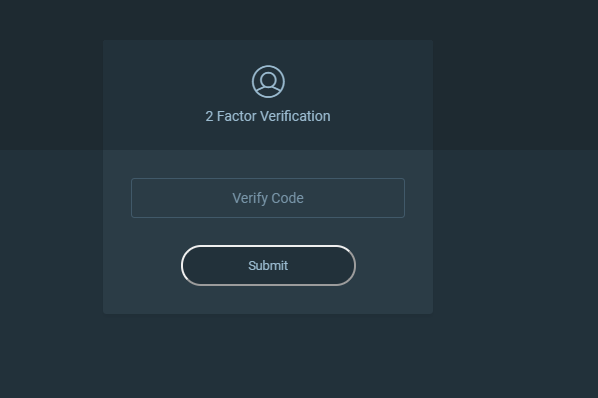
5) Now next step is verifying 2FA code on Login. For this first step in after login details got submitted. From the script you have to check, whether user has set twofa_enable as 1. If it is 1 , we have to redirect users to verifyauthentication page. If the twofa_enable  is 0, we can direct them to homepage without any verification, since the 2fa is not enabled.


First step is including a form from where to collect the verification code entered by the user.


<form  method="post" enctype="multipart/form-data" action="verifyauthentication.php">
<input class="form-control" type="text" name="code"  placeholder="Verify Code">

<button type="submit" class="btn btn-primary" name="submit">
Submit

</button>
</form>

6) Now user will open their google authenticator app and will put the code in the particular code input text area.
7) Now in our submission script we have to read the code entered and along with the users auth_secret value , using a function it will match the code to the valid code. If its is matching, the script will allow login , otherwise it will redirect to login page again. 

<?php
if(isset($_POST['submit'])){
     session_start();
 require "Authenticator.php";

if ($_SERVER['REQUEST_METHOD'] != "POST") {
    header("location: index.php?error=4");
    die();
}

$id=$_SESSION['loggeduser'];
$obj    =   new User();
$res   =   $obj->getLoggedInfo($id); 
$auth_secret =$res[0]['auth_secret'];

$Authenticator = new Authenticator();
$checkResult = $Authenticator->verifyCode($auth_secret,$_POST['code'], 2);    // 2 = 2*30sec clock tolerance

if (!$checkResult) {
    $_SESSION['failed'] = true;
    header("location: login.php?error=4");
    exit;
} else{

header("Location:home.php");
exit;

}

}


  ?>

Here you can see what the script is doing. Its taking the user id from session and readuing the auth_secret value from the database. Then it is calling verifyCode() method from the Authenticator class passing the code submitted by user and the secret we already saved in db. In script , it will match the code with the calculated code. If both are same, the script will redirect you to inner page otherwise will redirect back to login page.


Thursday, 7 November 2019

Changing Number of Failed Attempts in Linux Hosting Firewall

When we purchase a dedicated linux server for our company, mostly we have to take care of its security. Its evident that, there are many attackers trying to penetrate through the systems for their attack initilizations. So if our server doesn't have any firewall, the chance of getting hacked is high. So every company will configure Firewall in their server. Mainly the services are  termed as CSF(ConfigServer Security firewall) and Login Failure Daemon(LFD).

CSF

The ConfigServer Security firewall known as CSF is an open source software and most commonly used to configure the advanced firewall in Linux servers such us Login detection, SSH login notifications, etc. CSF provides the wide range of protection on your Linux servers.  By default, CSF firewall will be blocked IP address when entering wrong username or password in more than 5 times in the last 3600 seconds.

LFD

LFD stands for Login Failure Daemon is a process that is a part of the CSF that checks periodically for potentials threats to a server. The CSF is working with LFD. CSF checks the LFD logs for failed login attempts at a regular time interval and is able to find most unauthorized attempts to gain access to your Linux server. 

Changing Configuration From Comman Line or Terminal

Edit csf configuration via command line(CLI)

1) Login to Server as a root user.

2) Open the csf config file using the text editor like vi, vim.

vi /etc/csf/csf.config

3) Then find the following entries.

To change FTP login failed attempt value.

LF_FTPD = “10”

To change the value failure detection of SMTP AUTH connections.

LF_SMTPAUTH = “5”

To change login failure detection value of courier pop3 connections.

LF_POP3D = “5”

To change login failure detection value of courier imap connections

LF_IMAPD = “10”

To change login failure detection value of cPanel, webmail and WHM connections.

LF_CPANEL = “5”

4) Then save this config file after changing these values.

5) You have to restart csf and lfd services.

csf -r

service csf restart.

service lfd restart.

Changing Configuration From WHM

1) Login to WHM as a root user.


2) Go to Plugins >> ConfigServer Security & Firewall.
3) Go To Firewall Configurations

4) Go Inside configuration , now search for   LF_FTPD,  LF_SMTPAUTH   ,LF_POP3D, LF_IMAPD , LF_CPANEL
change its values... and restart the firewall... Now your issues will be resolved!!


Monday, 4 November 2019

Integrating Paypal into Your PHP Website with Dynamic Price

In this advanced world where online shopping is the new trend, its envitable for all the online selling providers to integrate payment gateways on their websites.People dont want to spend time on direct shopping or cash payments.etc.. So Here am explaining about simple way of integrating paypal buttons to your website.
1)First of all You have to create a paypal account. Also its better to create a sandbox accounts for testing. Better if you can create a buyer & seller sandbox accounts to check whether the transaction is happening or not.


2) Login to developer area.Create an app.
When you go inside you will get client id from the app created. So for testing purpose you can create a sandbox app for it and use its Client ID. 

3)In you website Checkout Page . Paste this Code:-

  <!-- Set up a container element for the button -->
    <div id="paypal-button-container"></div>

    <div id="info1"> </div>

    <!-- Include the PayPal JavaScript SDK -->
    <script src="https://www.paypal.com/sdk/js?client-id=CLIENT_ID&currency=USD"></script>
Replace CLIENT_ID with your client id , which i explained before. Currency you can set according to your preference based on the available Paypal Currencies.

4) In this Page you should have 2 things. one is the amount payable. this i want you to store in a variable called "payamount". if your currency is not available, you can convert same to USD using conversion rates and save it in same variable. Another thing you have to save is the corresponding order id of the order in your website. This is for saving the payment record corresponding to this transaction in your database. Save this value to a variable called "orderid".

<?php
 $orderid=$_GET['d'];
 $_SESSION['orderid']=$orderid;
 
 ?>

5)Before next step I want you to create one table in your database  called payments. This will save all payment records corresponding to the orders. So you can check whether the payment is done or not.

CREATE TABLE IF NOT EXISTS `payments` (
    `id` int(6) NOT NULL AUTO_INCREMENT,
    `txnid` varchar(20) NOT NULL,
    `payment_amount` decimal(7,2) NOT NULL,
    `payment_status` varchar(25) NOT NULL,
    `orderid` varchar(25) NOT NULL,
    `createdtime` datetime NOT NULL,
   `payer_name` varchar(100) NOT NULL,
   `payer_email` varchar(100) NOT NULL,
    `payer_id` varchar(100) NOT NULL,
    PRIMARY KEY (`id`)
    ) ENGINE=MyISAM DEFAULT CHARSET=utf8 AUTO_INCREMENT=1 ;

6) Now paste this code :-, I will explain the function one by one.

 <script>
        // Render the PayPal button into #paypal-button-container
        paypal.Buttons({
            // Set up the transaction
            createOrder: function(data, actions) {
                return actions.order.create({
                    purchase_units: [{
                        amount: {
                            value: '<?php echo $payamount;  ?>'
                        }
                    }]
                });
            },

            // Finalize the transaction
            onApprove: function(data, actions) {
                return actions.order.capture().then(function(details) {
                    // Show a success message to the buyer
                     console.log(details);
                    alert('Transaction completed by ' + details.payer.name.given_name + '!');
                    var name=details.payer.name.given_name;
                    var txnid=details.id;
                    var email=details.payer.email_address;
                    var payerid=details.payer.payer_id;
                    var status=details.status;
                    var updated_date=details.update_time;
                    var payamount = <?php echo $payamount;  ?>;
                   
                      $.ajax({
    type: "POST",
    url:  "postpayment.php",
    data: 'name='+name+'&txnid='+txnid+'&email='+email+'&payerid='+payerid+'&status='+status+'&updated_date='+updated_date+'&payamount='+payamount,
    success: function(data){
        $("#info1").html(data);
    }
  });
                    
                });
            }


        }).render('#paypal-button-container');
    </script>

I have highlighted some variables with red, to  explain you, how it works. In that line

 value: '<?php echo $payamount;  ?>'

Here we are passing the payment amount to the paypal function. After thr transaction gets completed, paypal will return us an array with the success parameters. The enxt thing we have to do is fetch it and pass to our php function and save it..

                   var name=details.payer.name.given_name;
                    var txnid=details.id;
                    var email=details.payer.email_address;
                    var payerid=details.payer.payer_id;
                    var status=details.status;
                    var updated_date=details.update_time;
                    var payamount = <?php echo $payamount;  ?>;
Here am fetching the required values from the details object and parsing one by one. If you closely check, these all values we want to save it in our database.

    url:  "postpayment.php",
This is the php page where am passing these variables as POST method.. Iam passing it like:-
'name='+name+'&txnid='+txnid+'&email='+email+'&payerid='+payerid+'&status='+status+'&updated_date='+updated_date+'&payamount='+payamount,
These variables can be received by the php page as POST varaibles and can save it in database.

7) create a page called postpayment.php

<?php
ob_start();
session_start();
//Connect Database Here

$name=strip_tags($_POST['name']);
$email=strip_tags($_POST['email']);
$txnid=strip_tags($_POST['txnid']);
$payerid=strip_tags($_POST['payerid']);
$status=strip_tags($_POST['status']);
$updated_date=strip_tags($_POST['updated_date']);
$orderid=$_SESSION['orderid'];
$payamount=strip_tags($_POST['payamount']);


$paydet=$pay->getdetails($txnid);

if(count($paydet)<=0){
$insert=array('txn_id'=>$txnid,'payment_amount'=>$payamount,'payment_status'=>$status,'orderid'=>$orderid,'createdtime'=>$updated_date,'payer_name'=>$name,'payer_email'=>$email,'payer_id'=>$payerid);
$pay->addpayment($insert);
$lastid=$pay->lastInsertId();
echo "Your Payment transaction is successfull.Please Note your Payment Reference No. : PAYREF-".$lastid;

}


?>
You can use your own db connection methods. Dont forget to initialize session as you remember, we saved order id as a session varaiable. you can also pass it via ajax with the other varaiables. But am not doing it. So then , assign all varables came as POST method into an array and save it in your database. You can also check, whether same transaction is saved before or not. After you do the payment using your sandbox accounts, check whether value i s saved in database or not. if success, Congratzz.. otherwise recheck above instructions again.

8) If this is success, replace the sandbox app client id with Live app client ID. Enjoy...